
What is Unassigned traffic in GA4—and how do you fix it?
Diagnose GA4 Unassigned traffic with source/medium checks, working UTM examples and a verification checklist. Know when the problem is tagging, collection or reporting scope.
What does Unassigned mean in GA4?
Unassigned is a channel label GA4 uses when no default channel rule matches the traffic. A visit can have a source and medium and still be Unassigned: the labels may simply not satisfy the rules for Email, Organic Social, Paid Search or another channel.
That distinction matters for a marketing team. Before deciding a campaign failed—or that GA4 lost all its data—look at the underlying source and medium. You may have a classification problem rather than a missing visit. Channel rules also consider source lists, campaign information and integrated-platform data, depending on the channel; a medium alone is not a universal channel guarantee.
Unassigned, Direct and (not set) are different problems
Unassigned means no channel rule matched. Direct is a defined channel: Google’s rule uses source (direct) and medium (none) or (not set). It often appears when there is no clear referral or campaign information, but it is not proof that every visitor typed your address.
(not set) is a placeholder for a dimension GA4 did not receive information for. It can occur in source, campaign or other dimensions; it is not another name for Unassigned. An untagged link is not automatically Unassigned either: GA4 may still classify it using a referrer or as Direct. Missing utm_campaign can make campaign reporting incomplete without necessarily breaking the channel match.
Google Analytics: default channel group definitions · Google Analytics: understand (not set) in reports
Step 1: isolate the affected traffic, using the right scope
Open Reports → Acquisition → Traffic acquisition in the correct property. Use Session default channel group and add Session source / medium as a secondary dimension. Filter or compare Unassigned, then sort by Sessions. If your report layout differs, create an exploration with those two dimensions and Sessions instead.
Record the largest source/medium pairs and the date the issue began. Check whether one newsletter, paid placement or integration accounts for most of the affected traffic. Compare equivalent date ranges; do not mix First user default channel group from User acquisition with session-scoped traffic. First-user, session and event-scoped dimensions answer different attribution questions.
- Confirm the property, date range and reporting time zone.
- Keep Session source / medium and Session default channel group together.
- Separate readable source/medium pairs from missing or (not set) values.
- Prioritise the largest affected placement before rewriting every campaign link.
Step 2: fix source and medium—not just the campaign name
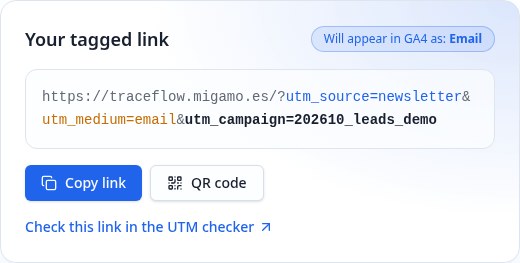
For manually tagged campaigns, compare the actual source/medium pair with Google’s channel definitions. For an email newsletter, newsletter / blast does not match the Email medium rule; newsletter / email does. For an organic LinkedIn post, linkedin / social is a suitable pair. For paid social, use the actual recognised social source with a paid medium such as paid_social; a made-up source can change the classification.
Use utm_source, utm_medium and utm_campaign together for clear campaign reporting. Agree consistent spellings across the team. Lowercase is a practical naming convention, not a fix for every channel issue: GA4 reports UTM values case-sensitively, while Google’s default channel definitions are not case-sensitive. Spaces and arbitrary abbreviations can still make labels inconsistent or fail the relevant rule.
Do not turn every medium into referral or cpc just to remove Unassigned. That hides what actually happened. For auto-tagged Google Ads traffic, check the account link, auto-tagging and whether click identifiers survive the landing journey rather than blindly replacing them with manual UTMs.
Illustrative email placement
Before: newsletter / blast
After:  newsletter / email

https://traceflow.migamo.es/?utm_source=newsletter&utm_medium=email&utm_campaign=202610_leads_demo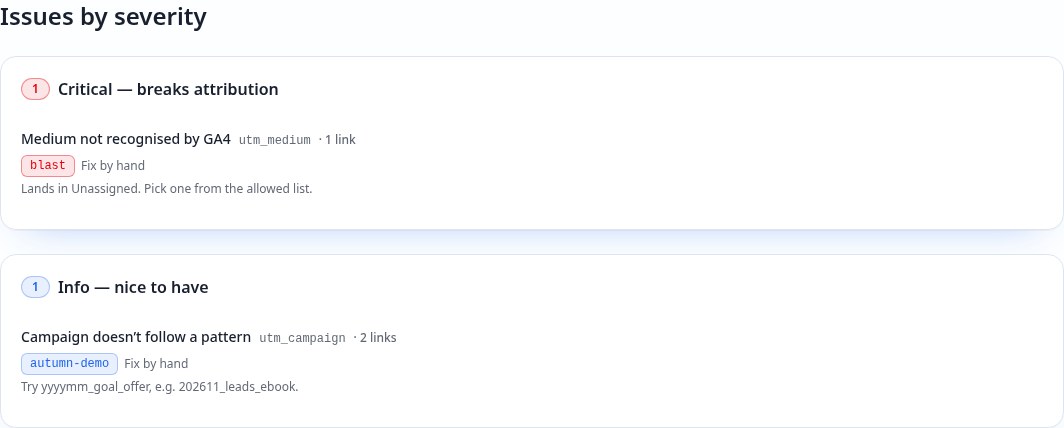
Google Analytics: default channel group definitions · Google Analytics: URL builders and UTM parameters
Step 3: test what arrives—not only the link you created
Follow the exact campaign link through any shortener, redirect, consent flow and landing-page change. Confirm that the final destination retains the intended parameters and, for auto-tagged ads, the relevant click identifiers. A correct spreadsheet link cannot help if the landing journey strips its information before GA4 collects it.
With analytics consent granted, verify the intended property receives the visit using Realtime and, for a debugging session, DebugView. If source or session information is missing, ask the person responsible for tracking to investigate collection rather than invent a new medium. Google lists a missing session_start event and incorrectly configured Measurement Protocol events among causes of missing session source/medium information.
If events are being sent before the Google tag is configured, or browser and server tracking disagree about user/session identity, campaign context can become disconnected. Check tag order, consistent cookie settings and any cross-domain setup with your tracking owner. These are collection issues, not reasons to label every visit as email.
Do not bypass consent to make the chart look better, and do not add email addresses or other personal information to UTMs or analytics events. The free checker examines URLs only: it cannot inspect your live tag, consent configuration, Google Ads integration or server-side event implementation.
- Test the distributed link, including its redirects.
- Confirm the final URL keeps the intended campaign information.
- Verify events reach the right property with analytics consent.
- Investigate missing session information or server-sent events with your tracking owner.
Google Analytics: URL builders and UTM parameters · Google Analytics: understand (not set) in reports · Google Analytics: fix missing data and Unassigned traffic
Step 4: choose between collection fixes and custom channel groups
Correcting a shared link changes future visits; it does not rewrite UTM values already collected. If the old data contains a meaningful source/medium pair, a custom channel group can apply your own reporting rules to it. Google allows custom channel groups to be used retroactively, so historical traffic can be regrouped without editing its original source data.
Use that option for a legitimate business taxonomy—for example, a deliberately custom medium that Google’s defaults do not recognise. It does not restore missing source information, and it does not change Google’s default channel rules. Keep custom-group analysis clearly labelled so colleagues do not compare it as if it were the default report.
Step 5: verify the fix before calling it solved
Create a corrected link for the real placement, test a new visit and record when you changed it. The builder’s channel preview checks its supported source/medium rules; it is not proof of what your live property collected. Verify the result in GA4 using session-scoped dimensions after processing.
Google says processing can take 24–48 hours and report data can change during that time. Realtime is useful for confirming receipt, not for certifying a settled channel report. Check a date range after your fix and compare the affected pair rather than expecting historical Unassigned totals to disappear overnight.
Once the collection is sound, Traceflow can help you explore campaign, source, medium and content together and compare traffic with your chosen lead events. It reads your GA4 data; it does not rewrite historical tags or guarantee that every visit can be attributed.
Free UTM checker
Start with the links you control. Spot unsupported mediums and inconsistent labels before you share the next campaign—then verify collection in GA4.
Open the UTM checker →Quick answers
What is Unassigned traffic in GA4?
Unassigned means the traffic does not match any GA4 default channel rule. Source and medium can still be present, so inspect those values before assuming data was lost.
How do I fix Unassigned traffic in GA4?
Inspect Session source / medium for Unassigned visits, compare the pairs with Google’s channel rules, correct campaign tagging or collection issues, and test new visits after processing. Use custom channel groups when a legitimate custom taxonomy needs different reporting rules.
Does a missing utm_campaign cause Unassigned?
Not necessarily. A source/medium pair can match a channel without a campaign name. Include a campaign name for useful campaign reporting, but do not assume adding it fixes every channel mismatch.
Is Unassigned the same as Direct or (not set)?
No. Unassigned means no channel matched; Direct is a defined channel; (not set) means information is missing for a particular dimension.
Can I fix historical Unassigned traffic?
New UTM values do not rewrite previously collected data. Custom channel groups can regroup historical traffic when usable source information exists, but they do not restore missing information or change the default channel rules.
How long does a GA4 channel fix take to appear?
First test that new events arrive, then allow for report processing. Google says processing can take 24–48 hours; evaluate visits collected after the fix rather than expecting old rows to change.
Sources
Written from hands-on B2B campaign work and checked against the Google documentation below. General guidance, not audited campaign results.
- Google Analytics: default channel group definitions
- Google Analytics: traffic-source dimension scopes
- Google Analytics: URL builders and UTM parameters
- Google Analytics: understand (not set) in reports
- Google Analytics: custom channel groups
- Google Analytics: data freshness
- Google Analytics: fix missing data and Unassigned traffic
- Google Analytics: avoid sending personally identifiable information